📁 1. Logging into the File Server
To access the File Server, go to https://cloudboardwalk.com and log in with your credentials.
Once logged in, click on Synology Drive:
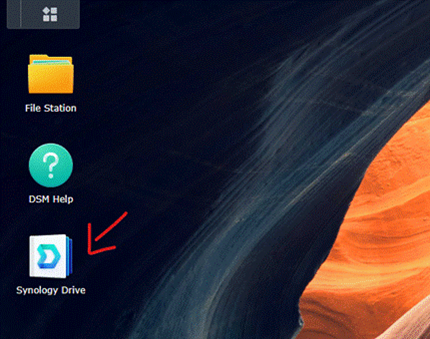
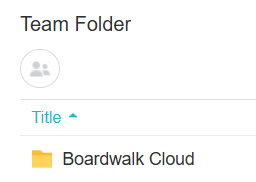
Our files are stored under the Boardwalk Cloud folder:
📱 Accessing from Your Phone
You can also install the Synology Drive app on your phone. When asked for the NAS address or QuickConnect ID, enter:
cloudboardwalkDownload the App:
📤 2. Sharing Files
We use Synology Drive to share files and folders.
cloudboardwalk.quickconnect.to/...If you see a link that starts with
gofile.me/..., it’s incorrect and should not be used.
You can share:
- Individual files
- Folders (if sharing multiple files, put them in a folder first)
Steps to Share a File or Folder:
- Right-click the file or folder
- Select Get Link
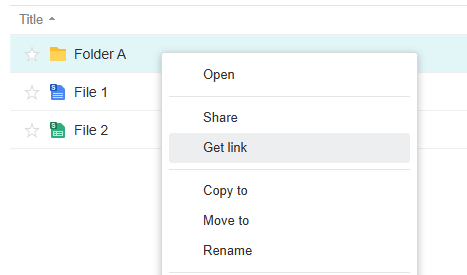
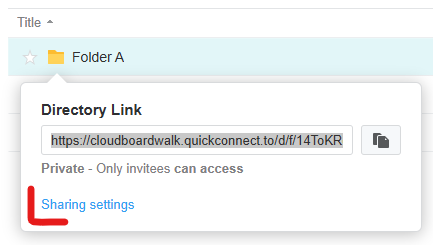
Click on Sharing Settings:
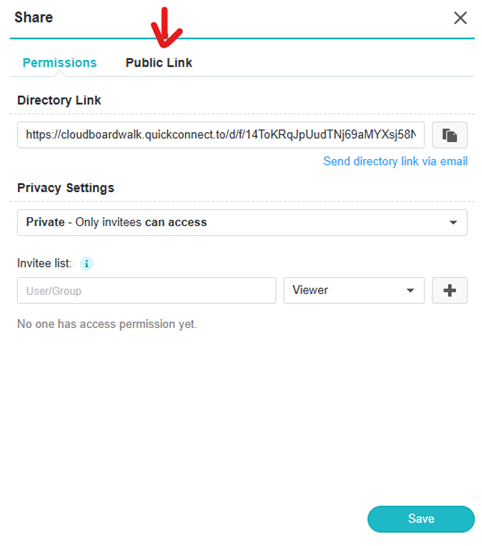
Go to the Public Link tab:
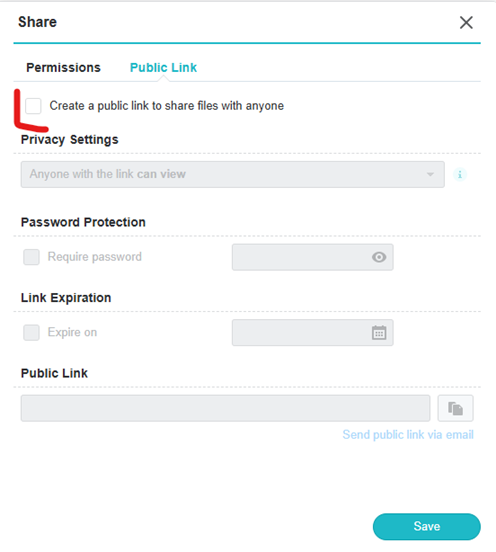
Select the option to “Create a public link to share files with anyone”:
Copy the generated link and click Save:
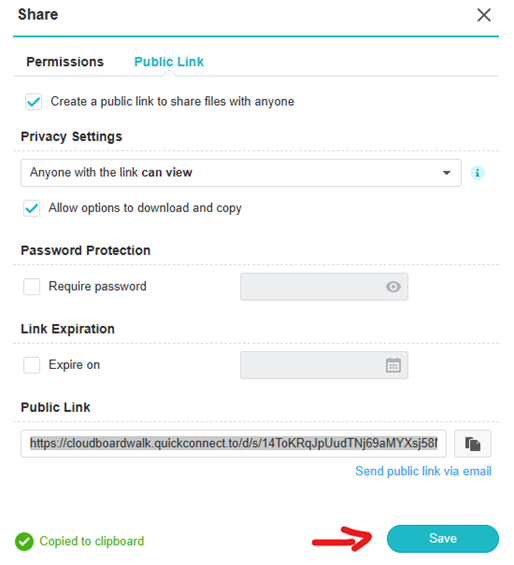
Optional Settings:
- Set a password for extra security
- Set an expiration date
- Restrict to view-only access (no downloads)
📥 3. Requesting Files (Great for Clients)
This feature lets you create a custom upload link that clients can use to send files.
Steps:
- Open the File Station app
- Create or choose a folder
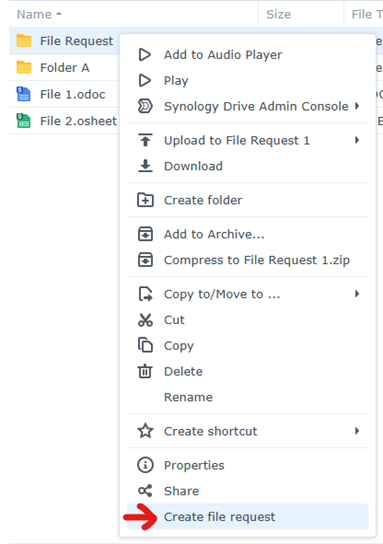
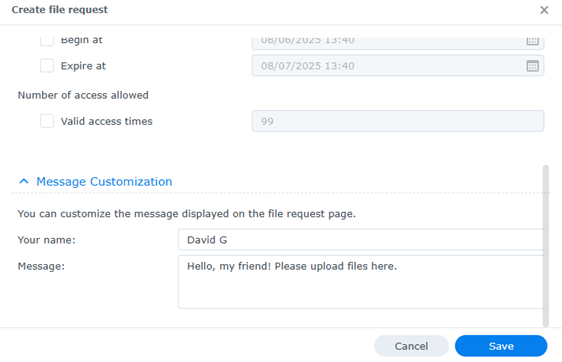
- Right-click the folder and select Create File Request
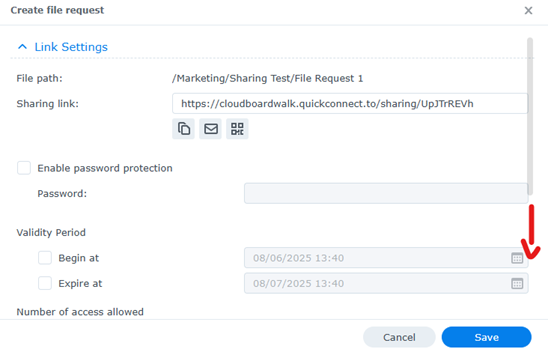
Scroll down to customize your message:
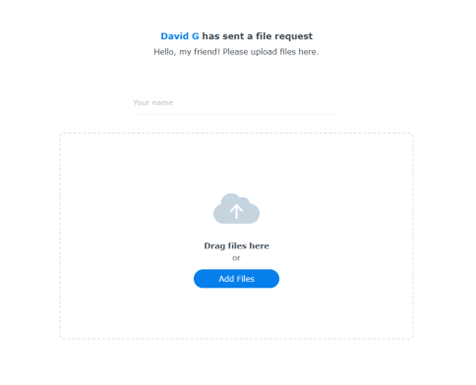
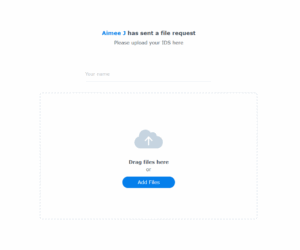
Once the link is created, you can send it to your client. This is how they will see the upload portal: