File Server 101

📁 1. Logging into the File Server

To access the File Server, go to https://cloudboardwalk.com and log in with your credentials.

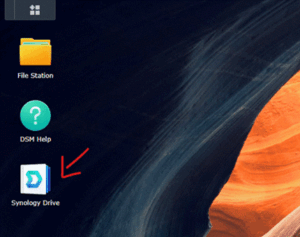
Once logged in, click on Synology Drive:
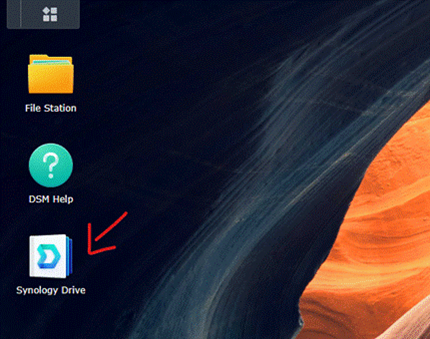
Synology Drive Button

Our files are stored under the Boardwalk Cloud folder:
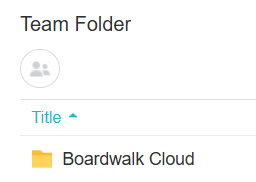
Boardwalk Cloud Folder

📱 Accessing from Your Phone

You can also install the Synology Drive app on your phone. When asked for the NAS address or QuickConnect ID, enter:

cloudboardwalk

Download the App:


📤 2. Sharing Files

We use Synology Drive to share files and folders.

⚠️ Important: Shared links must contain cloudboardwalk.quickconnect.to/...
If you see a link that starts with gofile.me/..., it’s incorrect and should not be used.

You can share:

  • Individual files
  • Folders (if sharing multiple files, put them in a folder first)

Steps to Share a File or Folder:

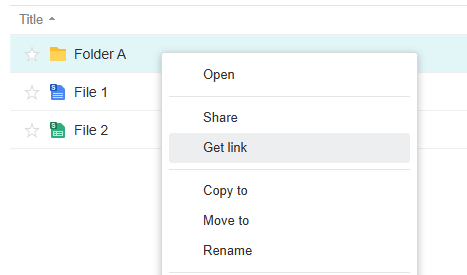
  1. Right-click the file or folder
  2. Select Get Link
Get Link Option

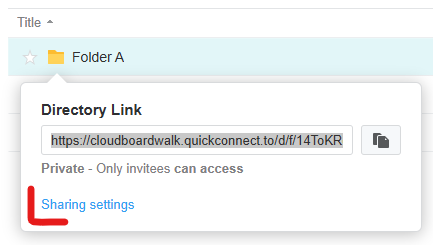
Click on Sharing Settings:

Sharing Settings

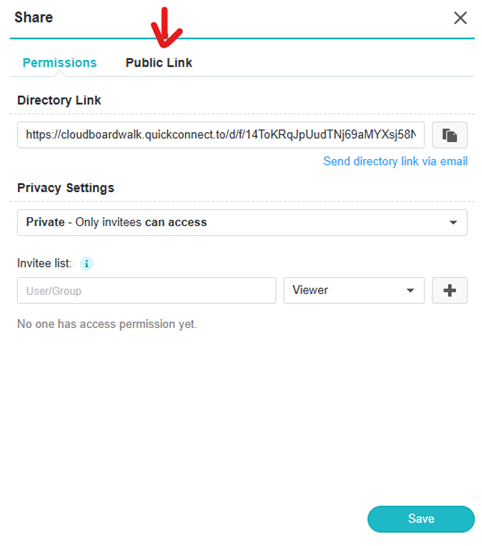
Go to the Public Link tab:

Public Link Tab

Select the option to “Create a public link to share files with anyone”:
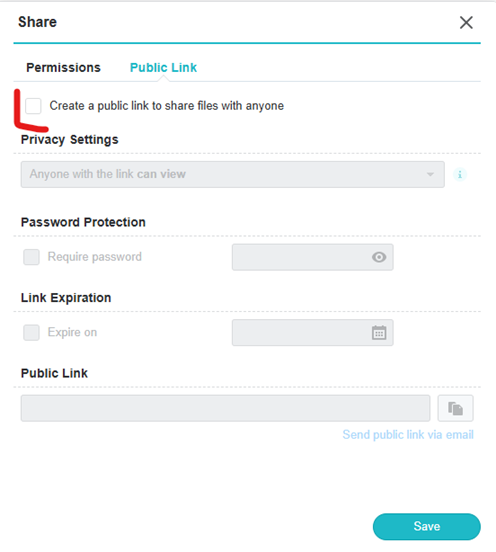
Create Public Link

Copy the generated link and click Save:
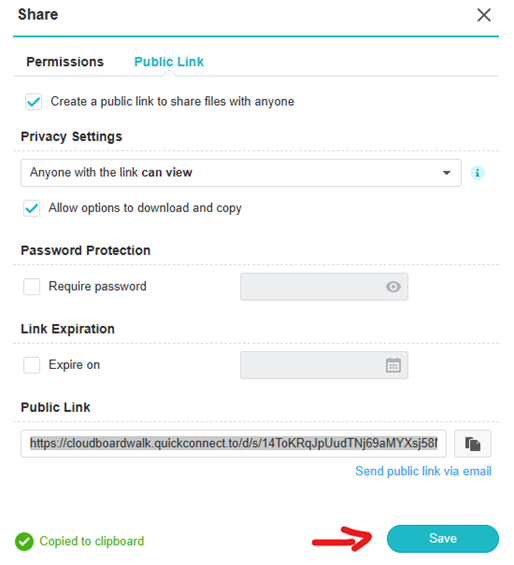
Copy Link and Save

Optional Settings:

  • Set a password for extra security
  • Set an expiration date
  • Restrict to view-only access (no downloads)


📥 3. Requesting Files (Great for Clients)

This feature lets you create a custom upload link that clients can use to send files.

Steps:

  1. Open the File Station app
File Station App
  1. Create or choose a folder
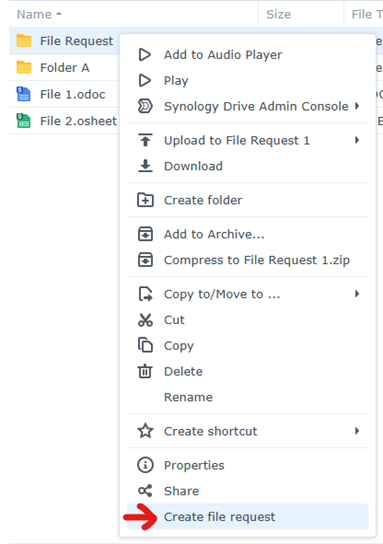
  2. Right-click the folder and select Create File Request
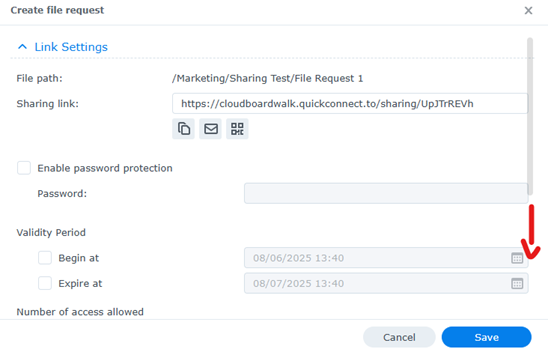
Create File Request

Scroll down to customize your message:
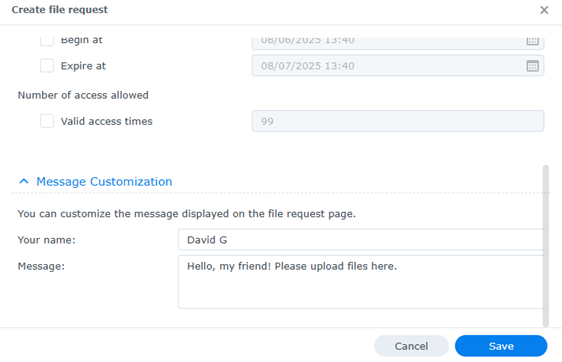
Message Customization

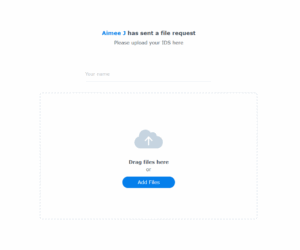
Once the link is created, you can send it to your client. This is how they will see the upload portal:
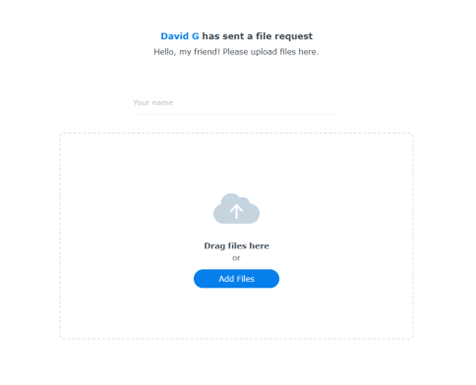
Client Upload View

Other Materials

2026 Recordings

Mastering Follow-Up

How Vero Aranda runs every lead through Follow Up Boss, Real Geeks, and Flex without losing any of them. A practical walkthrough of the daily system she uses for Aimee and Gabe’s pipeline, with the templates, tags, and shortcuts that keep the database clean.

Read More »
Quick Guides

BW Chat Guide (Formilla)

📘 BW Chat Guide (Formilla) Purpose This guide explains how to use Formilla Chat while on floor duty so we can respond to website visitors

Read More »
Quick Guides

Create a File Request Link

1. Navigate to https://cloudboardwalk.com/ and login 2. Use File Station 3. Click “Boardwalk Cloud” 4. Navigate to the listing / deal folder 5. Right click

Read More »
Quick Guides

FUB Dupe Check

Learn how to properly search for existing leads and avoid duplicate entries in the system. This guide walks you through checking by name or email, recognizing system warnings, and following the correct steps when adding a new contact

Read More »
Quick Guides

File Server 101

Learn how to access, share, and request files using our Synology-powered File Server. This step-by-step guide includes screenshots for logging in, sharing public links, requesting uploads from clients, and accessing files from your phone.

Read More »
SOPs

Lead Handling & Duplication Protocol

To ensure consistency, accountability, and clarity when handling duplicate leads (“dupes”) across all platforms, ensuring the original agent retains the lead and preventing duplicate outreach.

Read More »

This internal platform contains confidential and privileged information intended solely for authorized team members of Boardwalk Realty. The materials shared here, including training videos, documents, and internal processes, are for internal use only. Unauthorized access, distribution, copying, or disclosure of any content is strictly prohibited.